Embed Interactive Maps on Any Website — No SDK Required
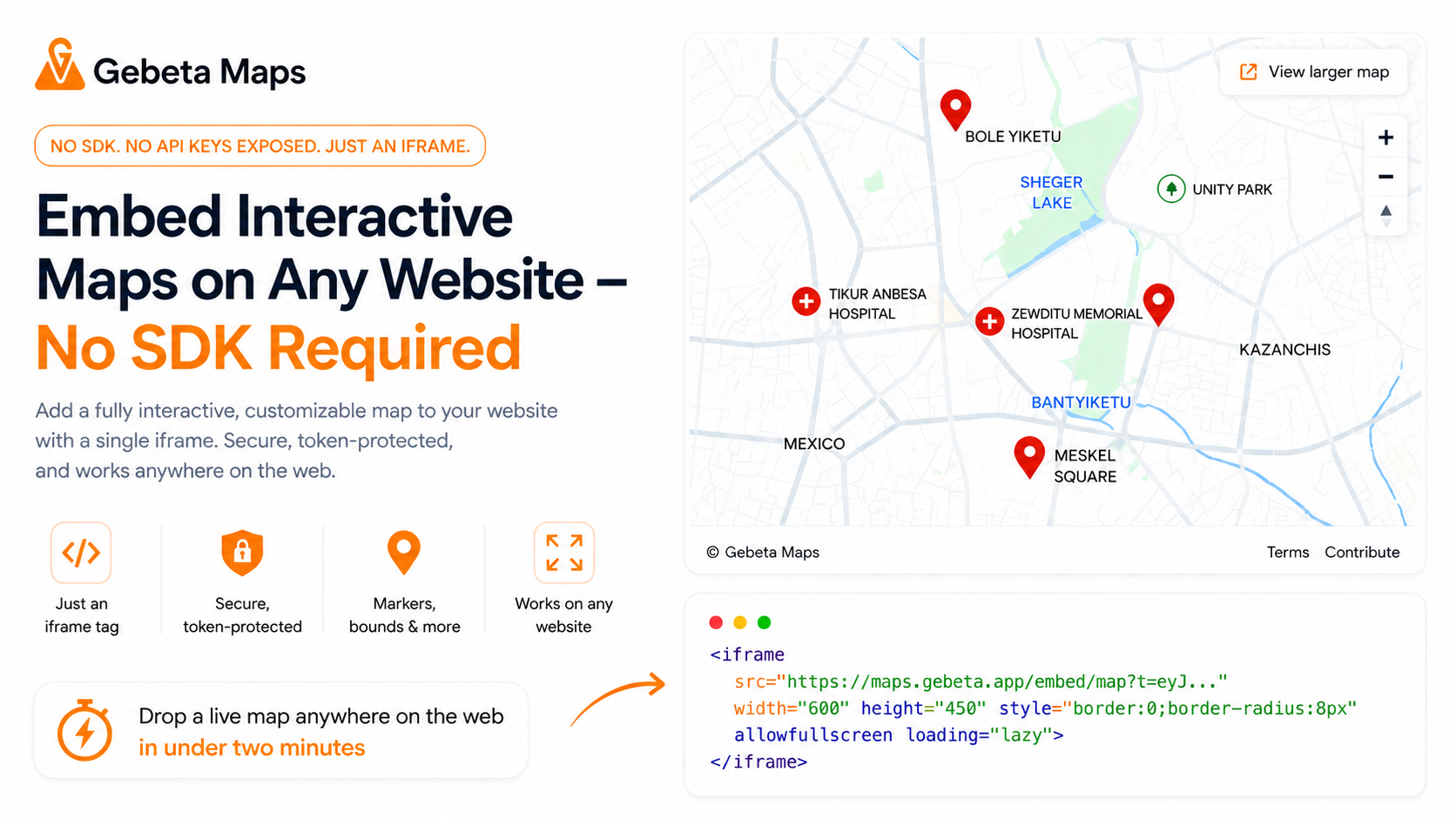
Drop a live map anywhere on the web in under two minutes
Gebeta Maps lets you embed a fully interactive map on any website with a single <iframe> tag. No API key exposed, no SDK to install on the host site just a secure, token-protected URL you generate from the dashboard.
This guide walks through the entire flow from the dashboard to a live embed.
Prerequisites
Before you start, you need two things from your Gebeta service account:
- Server Token — generated with Admin ON
- Client Token — generated with Admin OFF
You can find both in your Gebeta developer dashboard under Service Accounts.
Step 1 — Open the Map Embed Page
In your dashboard, navigate to Map Embed from the sidebar. You'll land on a configuration page with two token inputs and an interactive map below.
Step 2 — Load the Map
Paste your Server Token and Client Token into their respective fields, then click Load Map to Configure.
The map will initialize centered on Addis Ababa at zoom 13. Once it loads you'll see a blue dot that's your draggable center marker.
Step 3 — Set the Map Center
By default the Set Center mode is active. Click anywhere on the map to move the center to that location, or drag the blue dot directly to reposition it. The coordinates update live below the map.
The center you set is where the embed will open when someone loads it.
Step 4 — Drop Markers (Optional)
Switch to Drop Marker mode using the toolbar above the map. Click any location to place an orange marker there. You can place as many as you need.
After dropping markers, a list appears below the map where you can add a label to each one.
To remove a marker, click the trash icon next to it in the list.
Step 5 — Draw a Bounding Box (Optional)
If you want to restrict users from panning or zooming outside a specific area — useful for embedding a map of a single city, campus, or venue use the Draw Bounds button.
Click it, then click two opposite corners on the map to define the rectangle. A dashed overlay will appear showing the restricted area. Users of the embed won't be able to pan outside this box, and the minimum zoom is automatically set so they can't zoom out past it either.
To remove the restriction, click Clear Bounds.
Step 6 — Generate the Embed
Once you're happy with the configuration, click Generate Embed.
The page will scroll down to show a live preview of your embed and the iframe snippet ready to copy:
<iframe
  src="https://maps.gebeta.app/embed/map?t=eyJ..."
  width="600"
  height="450"
  style="border:0;border-radius:8px"
  allowfullscreen
  loading="lazy"
></iframe>
The t parameter is an encrypted token that contains your map configuration. It does not expose your server or client tokens it is safe to paste publicly in any HTML page.
Step 7 Paste It Anywhere
Copy the snippet and paste it into any HTML file, CMS, blog post, or website builder that accepts raw HTML. The map will render with your configured center, zoom, markers, and bounds no additional setup required on the host site.
<!-- Example: adding the embed to a plain HTML page -->
<!DOCTYPE html>
<html>
  <body>
    <h1>Find Us</h1>
    <iframe
      src="https://maps.gebeta.app/embed/map?t=eyJ..."
      width="100%"
      height="450"
      style="border:0;border-radius:8px"
      allowfullscreen
      loading="lazy"
    ></iframe>
  </body>
</html>
What the Embed Supports
| Feature | Details |
|---|---|
| Center & zoom | Saved from your configuration session |
| Markers | Up to any number |
| Bounding box | Hard panning and zoom-out restriction |
| Navigation controls | Zoom in/out buttons built in |
| "View larger map" | Opens the full Gebeta Maps app at the same location |
| Token security | No raw credentials in the iframe URL |
Regenerating an Embed
The embed URL is tied to a snapshot of your configuration at generation time. If you want to update the center, add markers, or change the bounds, go back to the Map Embed page, reconfigure, and click Generate Embed again to get a new URL.